Call desk
Maintain a reliable recorded conversation history.
Sign in with your own approved account. Open Call desk through the sidebar or Master setup. Some actions require administrator/manager permission. Screens use anonymized test data; sample totals are not your company results.
What to do
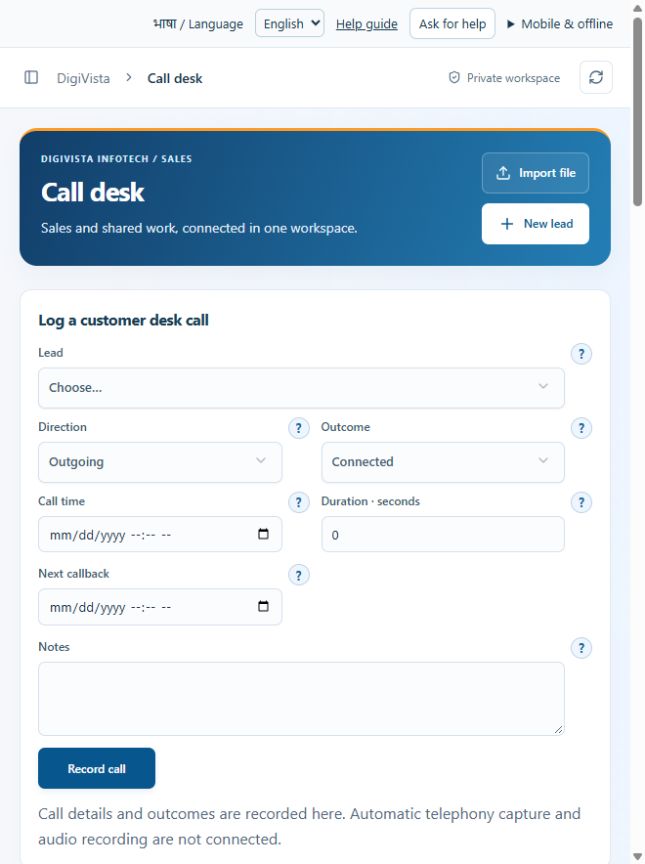
- Choose the lead and incoming/outgoing direction.
- Enter call time, duration, outcome and notes; add a callback date when requested.
- Save the call and inspect its linked activity and next callback.
Check the result
A recorded call is linked to the lead; this does not place or record telephone audio.
Screen markers
- 1. Lead
- 2. DirectionOutgoingIncoming
On narrow screens, scroll to reach the remaining form fields and actions. Close help to return to your unfinished form.
Why and how this activity works
Call desk records incoming/outgoing direction, call time, duration, outcome, notes and next callback. Callback requested needs a date. Relevant activity is linked to the lead. Activity timeline also records notes, meetings and sales conversations. Telephone audio recording, automatic call capture, dialler and speech transcription require a future telephony provider connection. Do not assume calls are recorded merely because a call entry exists.
हिन्दी में समझें
कॉल का समय, आने/जाने वाली कॉल, अवधि, बात हुई या नहीं, टिप्पणी और अगली कॉल भरें। ग्राहक दोबारा कॉल चाहता हो तो तारीख तय करें। रिकॉर्ड उसकी लीड से जुड़ता है। नोट और बैठक भी दर्ज करें। कॉल की एंट्री से ऑडियो रिकॉर्ड नहीं होता। ऑडियो, अपने-आप कॉल दर्ज करना, डायलर और आवाज़ से टेक्स्ट के लिए अलग फोन सेवा जोड़नी होगी।
If something is missing or fails
Check role access, selected record and filters. Read validation errors before retrying. For a conflicting edit, refresh and review the current record. A saved setting does not prove a provider connection is active.
Full topic and field help · All screen guides · Learning centre