Provider uploads data. CRM records provider, uploader, source file and row separately from the sales owner.
 All screen guides
From supplied data to useful customer conversations
Keep the source owner, quality reviewer, caller and tester responsibilities clear. Screenshots below use fictional test records.
Super Admin checks contact evidence and approves phone and email independently.
Caller works approved numbers and shares useful outcomes back to the provider.
QA records reproducible issues, reference screenshots, fixes and retest evidence.
Who can do what?
| Role | Purpose and access |
|---|---|
| Sales executive · Ravi | Assigned leads and follow-ups. My supplied data shows his own submitted records and shared calling updates. Sales ownership stays with Ravi when Vaishnavi makes calls. |
| Calling staff · Vaishnavi | Only current, approved phone contacts due for calling. No access to unapproved contact methods, business administration or raw imported lists. |
| QA tester · Palak | Read-only business screens plus testing notes, screenshots and issue review. Cannot edit real customers, payments, roles or passwords. Use an isolated workspace for write tests. |
| Data provider · invited customer | Uploads own source data, sees own review feedback and shared call remarks. No other provider’s data or internal testing notes. |
| Super Admin | Approves channels, reviews corrections and controls quality jobs. Every approval has a reviewer, reason and time. |
Review contact quality
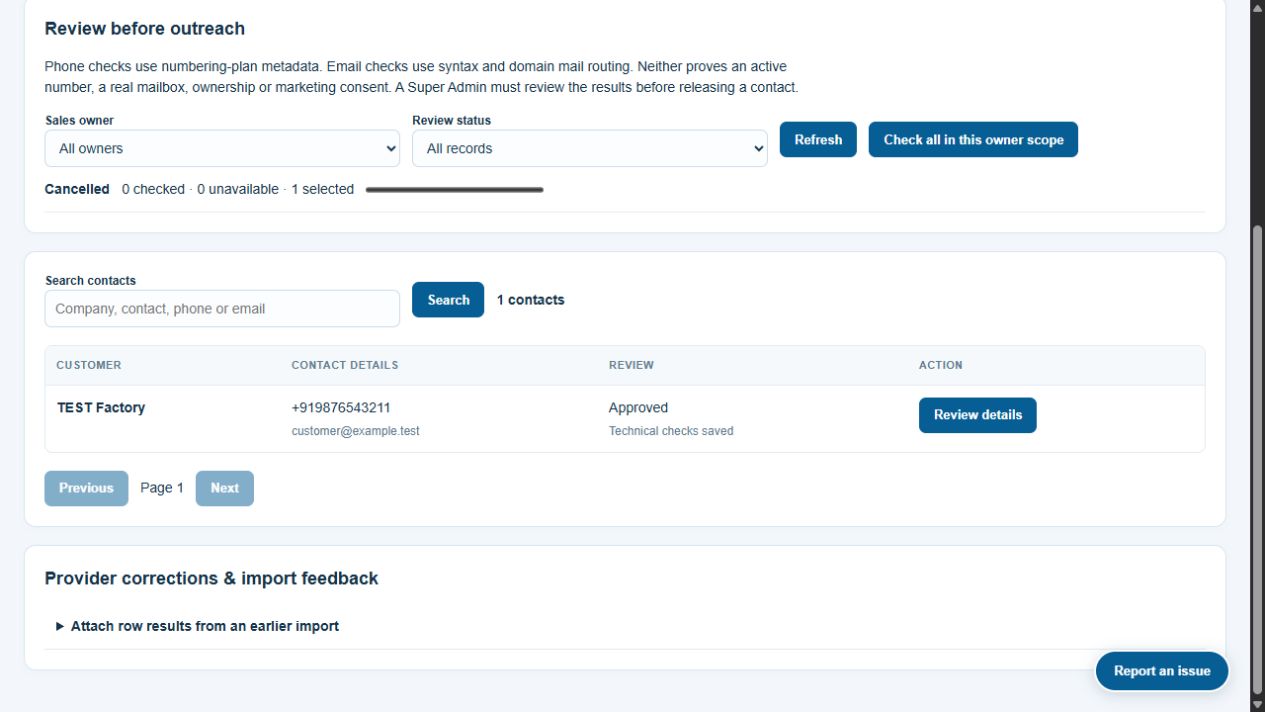
- Open Contact quality. Select the sales owner, such as Ravi.
- Select Check all in this owner scope. The background job checks the selected snapshot. Refresh for progress; pause or cancel if required.
- Select Review details. Use Check this contact when the saved evidence is missing or out of date.
- Select a phone that passed the numbering-plan check. Select an email separately, only when its mail-routing check supports it. A good phone can be approved even when email is missing or invalid.
- Add a plain-language reason visible to the provider, choose the review basis and confirm the review. Select Approve selected channels, or return the record for correction.
 12
121: Select the owner and review scope. 2: Open the evidence before making a channel decision.
These checks do not prove a number is active, a mailbox exists, identity is correct, WhatsApp is available or marketing is permitted. The system does not silently call people, send verification messages or approve contacts automatically. Contact edits invalidate the previous approval.
Work the calling queue
- Open Calling desk. Pending, changed, rejected and Do not contact records stay out of the queue.
- Select Start call. The contact is reserved briefly to avoid simultaneous callers.
- Select Open dialer, then use your phone or configured device. This screen does not establish, record or measure the call.
- Record the actual outcome, a useful remark, optional callback time and manually entered duration.
- Keep Share call remark with the data provider selected when the update is suitable for the provider. Put private information in Internal team note.
- Save. Wrong number and Not in service remove phone approval. No answer or Busy schedule another attempt; three unanswered attempts in a week hold the record for team review. Do not contact suppresses further outreach.
Upload, filter and download your supplied data
Choose an industry in My supplied data to narrow your own records. Download my updated Excel or CSV includes current sales stages, review reasons and shared caller remarks. Exports are clearly split into parts of up to 10,000 matching records. Data-provider accounts can view, import new rows and download; they cannot edit existing customers or send campaigns.
- Use My supplied data, then Upload customer data. Download the Excel or CSV template from the import dialog.
- Map the source columns, review row results and correct individual rows before confirming. Customer-provider accounts create new records only; they cannot overwrite another person’s leads.
- Review quality reasons and shared call remarks in your portal. Failed or repeated source rows appear in Import rows needing review after their row feedback is saved.
- Internal sales staff can choose Propose correction for an existing submitted contact. External data providers should ask DigiVista to correct an existing record. Enter corrected phone/email and explain the change. Business data stays unchanged until a Super Admin accepts the proposal.
- For an invalid import row, download the row report, correct it and re-upload the corrected row. Check duplicate reasons first; do not recreate an existing customer.
For an import made before this workflow was released, a Super Admin can attach its CRM row-results CSV under Contact quality → Provider corrections & import feedback. This action stores feedback only and creates no leads.
Filter an industry and apply one campaign template
- Internal administrators or sales managers open CRM → Campaigns.
- Choose Email or WhatsApp, then select the industry and search the matching audience. The list queries all authorised records, with 200 per page; it is not restricted to the first CRM overview records.
- Keep current channel approval selected. Select eligible contacts, up to 500 per campaign. The system also checks recorded channel permission and Do not contact status.
- Apply one saved email template, or enter the approved Meta WhatsApp template name and language. Personal fields such as {{name}}, {{company}} and {{industry}} are filled for each recipient.
- Review the audience, then prepare it. Preparation does not send anything. A connected sender/provider and explicit send action are still required. WhatsApp templates must be approved by Meta.
Imported provider contacts require a fresh channel review before campaign preparation and sending. Unknown industry stays Unspecified; filtering does not infer marketing consent.
Report a problem on any internal business screen
- Select Report an issue. The current screen path and module are recorded without URL tokens.
- Add a short title, severity, exact steps, expected result and actual result.
- Paste a reference screenshot or upload PNG/JPEG files: up to three, 2 MB each. Remove private reset links, passwords and unrelated personal information first.
- Select Save issue. Use Testing notes to review it, add notes and export visible issues as CSV. Screenshot links require sign-in and authorised issue access.
- Record the fix note and release, mark Ready for retest, then Passed or Reopened after testing. A status entered by a tester is evidence of their review, not an automatic deployment guarantee.
Customer-provider accounts cannot view internal QA issues. Closing the issue form keeps unsaved content in that page session; refreshing or leaving the page discards unsaved changes.